Deeplink released a new centralized platform to manage access across all Deeplink products (Docs, Analytics). The platform is designed to simplify access controls, ensure sovereignty, and control who can see your sensitive business information.
Deeplink’s platforms are based on the configuration of two core entities:
- Institutions : represents the entity of your company and all its departments.
- Workspace : represents one department within your company. You can configure workspaces to have their own content, documents, chatbots, AI agents, and more.
The platform is designed around 4 core roles which can perform different functionalities:
- Deeplink Admin : Only two people have this access, the Deeplink CEO and CTO. The role of Deeplink Admins is to create Institutions, assign an Institution Admin, and provide access to products and features within an Institution. Deeplink Admins will not have access to the data within an Institutions’ workspaces unless you explicitly provide it. This ensures no one outside of your organization can view your sensitive information.
- Institution Admin : Institution Admins are employees of your institution in charge of the creation of all workspaces via the IAM Platform. Institution Admins’ main role is to create workspaces and assign Workspace Admins. Unless explicitly given access, Institution Admins will not have access to the data within a Workspace. This ensures your Institution has an admin to configure departments, without seeing their sensitive information. For example, the technical lead configuring Deeplink into your company might not have access to financial documents or the employee data stored by HR.
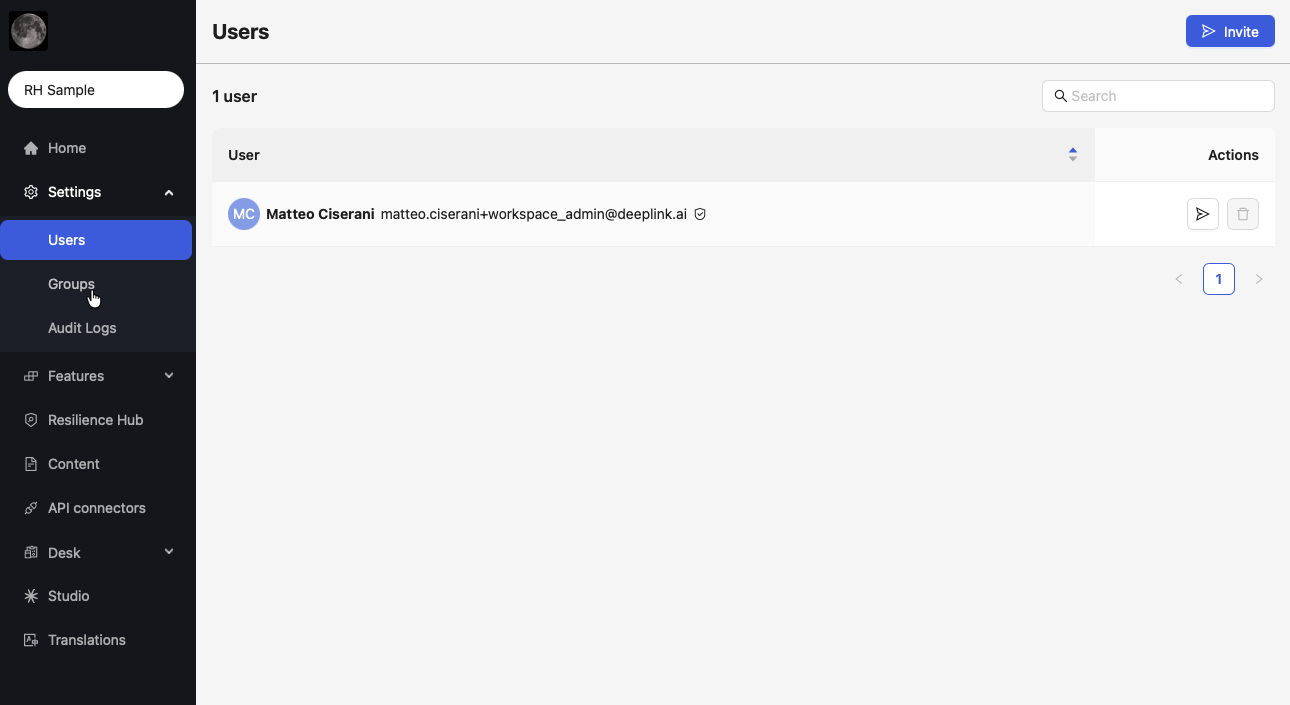
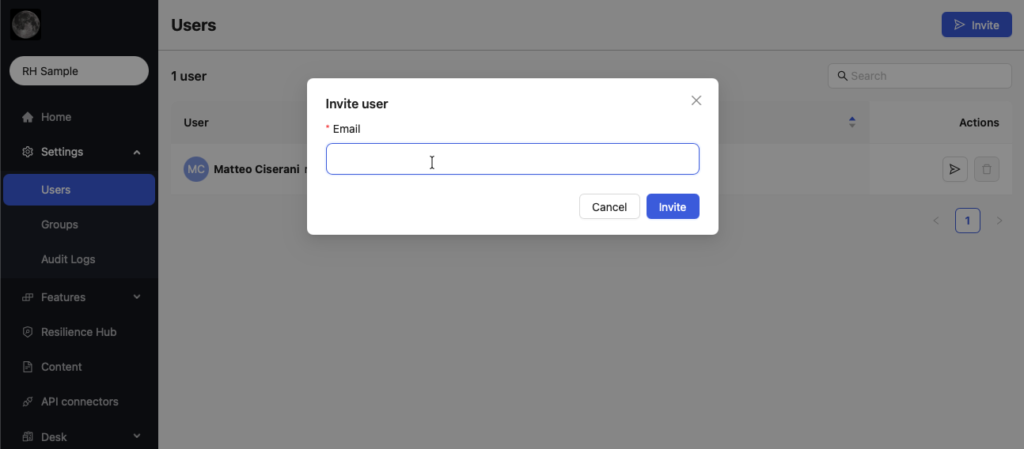
- Docs Workspace Admin : Workspace Admins do not have access to the IAM Platform for any tasks except configuring their own profile. However, they will have access to configure the Docs platform by creating Users, User groups, and assigning product features to user groups. Workspace Admins can see all the sensitive information within Docs except for private Minutes and Studio Conversations.
- User. Users will have access to use the Docs platform according to the features available in their User Group. They will only access the IAM platform to configure their own profile in a seamless experience.
IAM Platform Walkthrough.
The following steps will be taken during the configuration of a new institution and its workspaces:
1. Deeplink Admins will create the institution and assign an Institution Admin.
2. Institution Admins will login to the IAM Platform and under “institutions” will see their company.
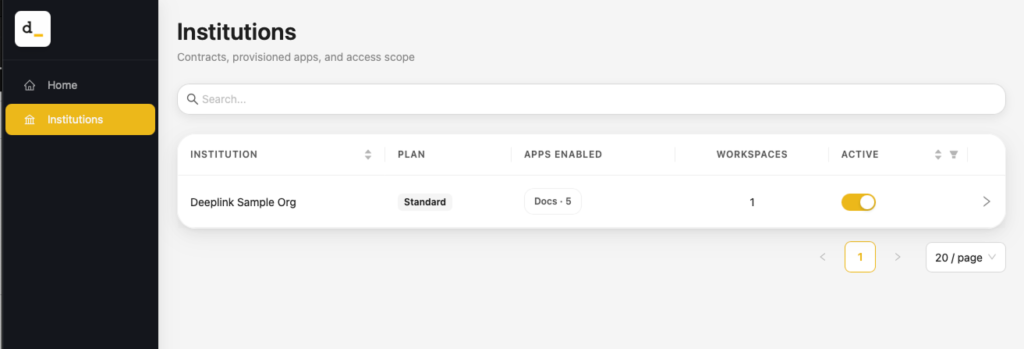
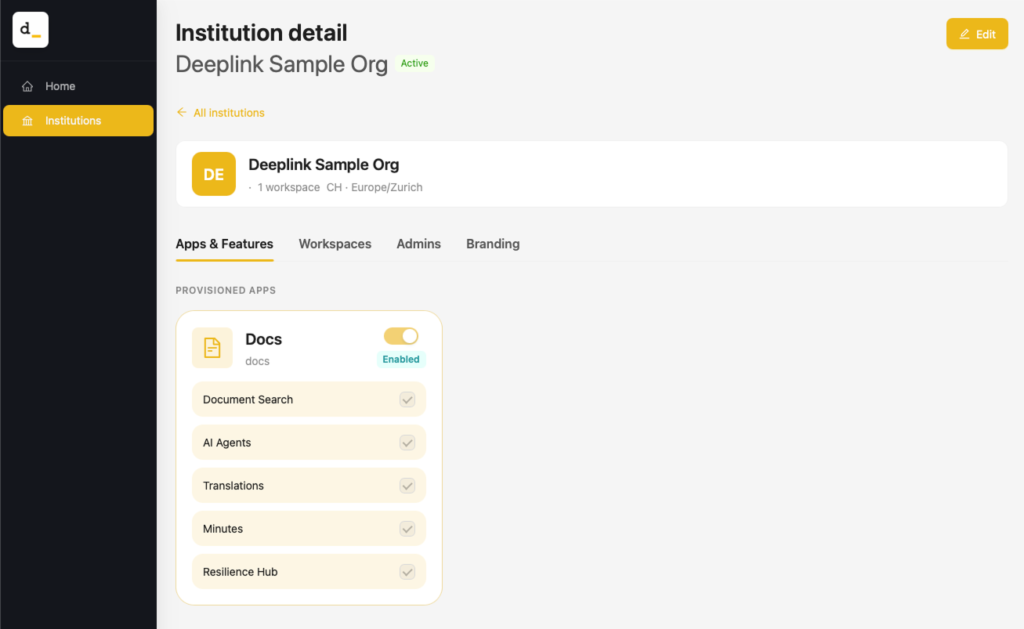
By clicking on the institution, they will see the Apps & Features configured and can optionally choose to remove a feature for all the workspaces in the institution.
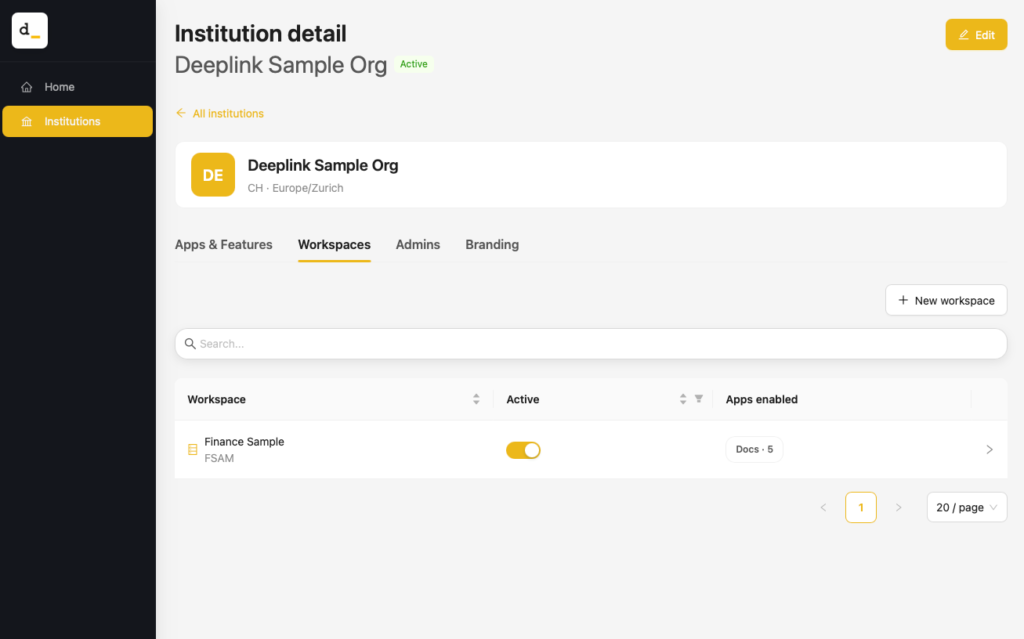
3. Institution Admins will select the “Workspaces” tab and start creating workspaces using the “+ New workspace” button
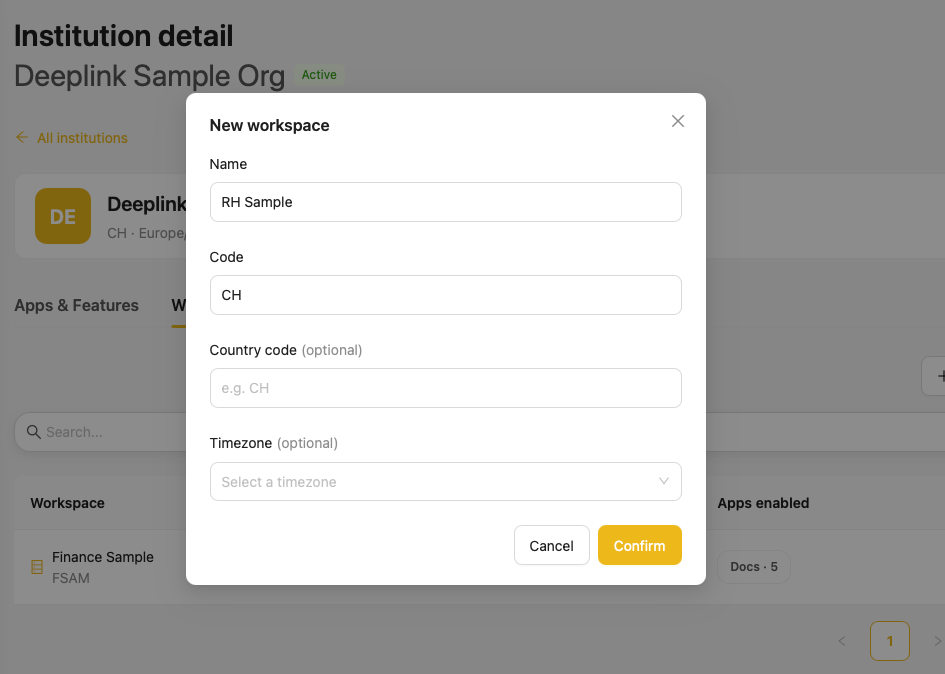
Once created, users can configure the products available to a workspace and apply different Logo and Branding if necessary.
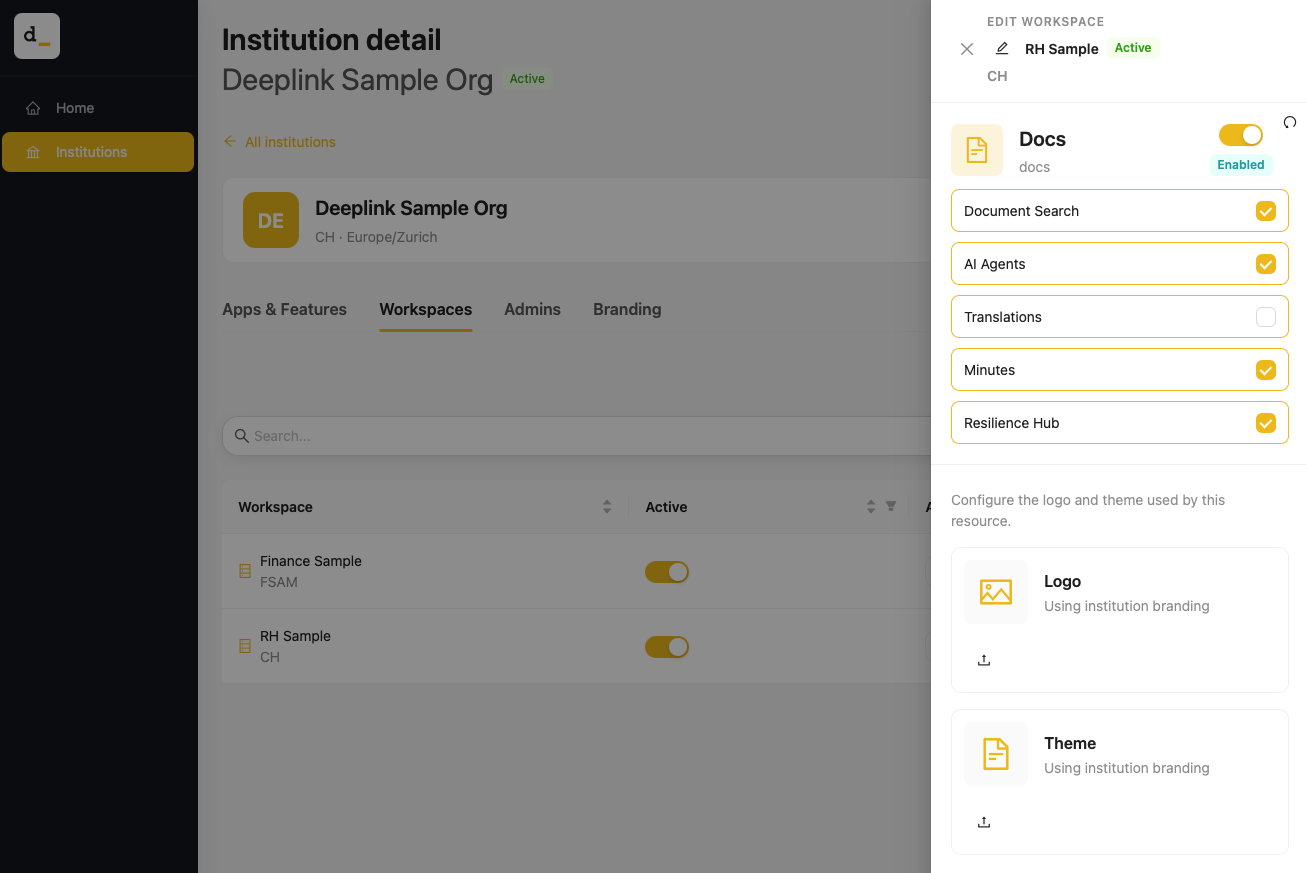
Admins can choose to reset app access if they want to restore the workspace to the Institution’s default.
4. Institution Admins will select the “Admins” tab…
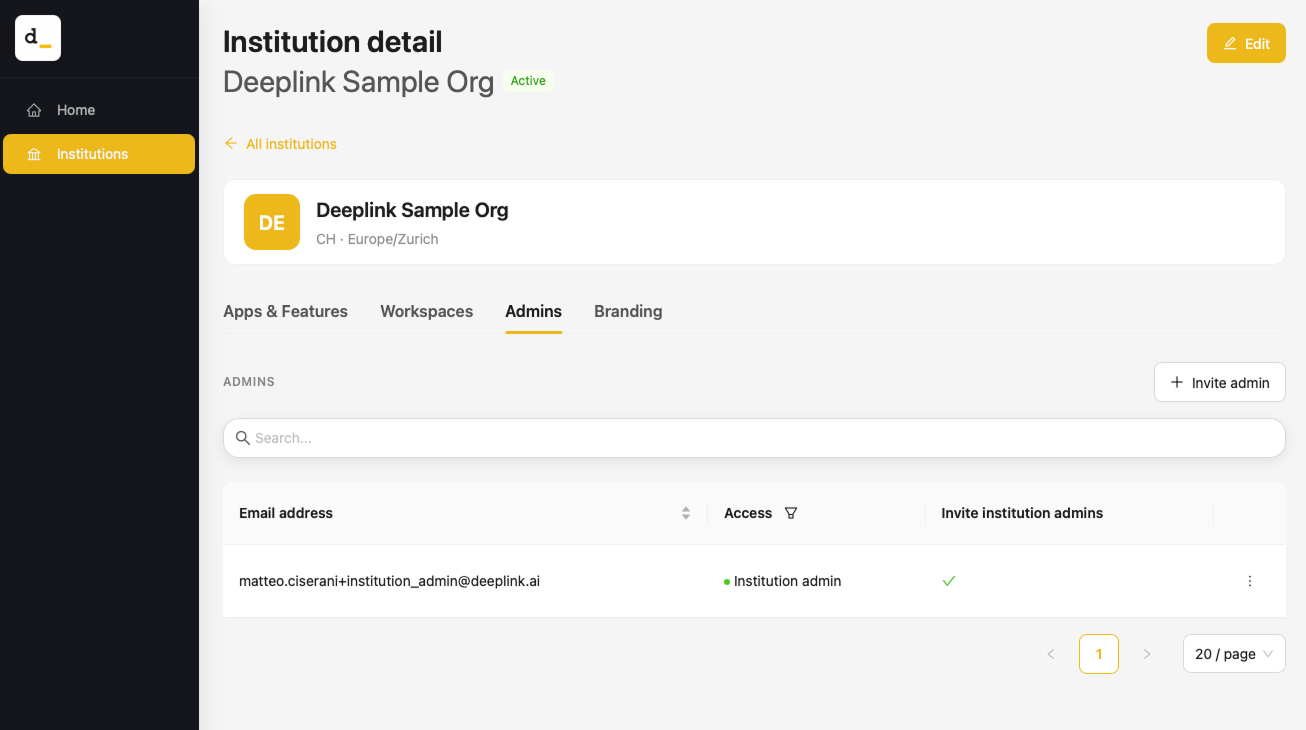
… and can perform two tasks:
1. Adding other Institution Admins to support them with their duties.
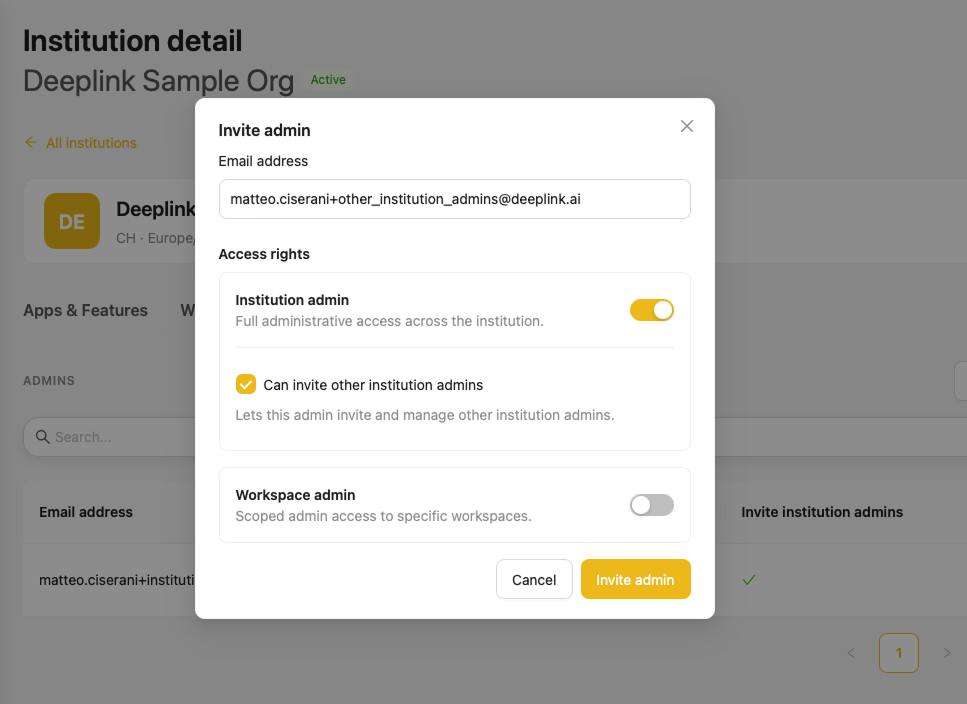
2. Creating Workspace Admins and assigning them to the workspaces they can fully edit.
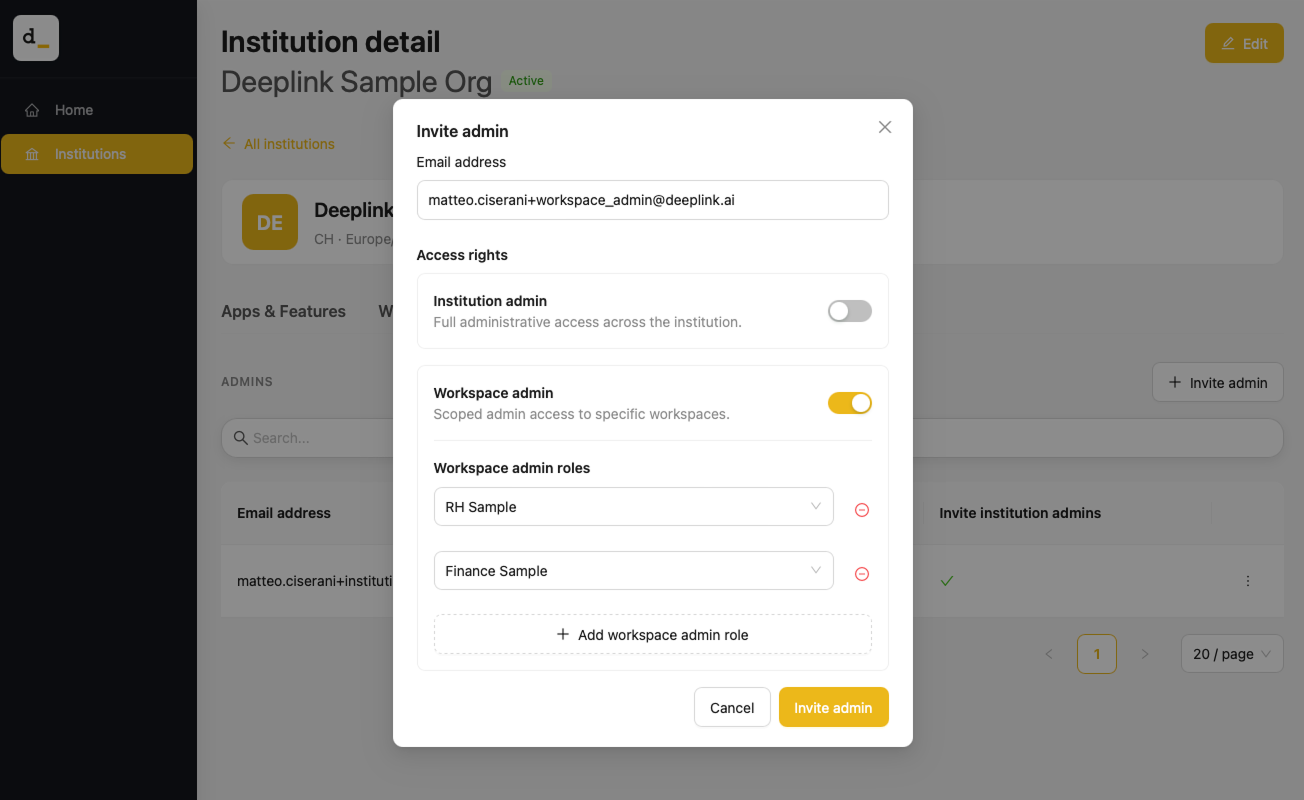
3. Optionally, Institution Admins can provide temporary access to Deeplink employees as Institution or Workspace Admins to support them in configuring the platform.
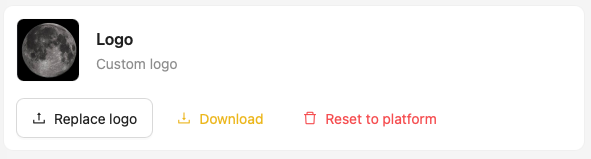
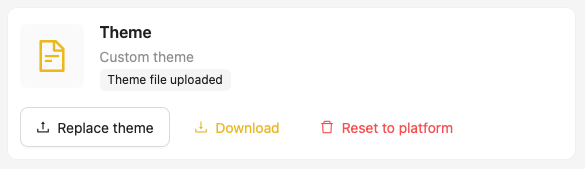
5. Institution Admins will select the Branding Tab and can configure a Logo and Theme for the whole company.
6. Workspace Admins can now log onto Docs and begin configuring Users, User Groups, and assigning product features to User Groups.