
The docs.deeplink.ai platform allows you to send short messages from the Threema instant messaging app and receive them in your Inbox (with automatic or manual message aggregation).
Prerequisites: Before you begin, your organization must have a dedicated Threema account (Account ID). To request one, contact Deeplink.
Here are the steps for setting up Threema.
- Download and install the Threema app
- In docs.deeplink.ai, go to your profile page (at the bottom left of the sidebar) and enter your personal Threema ID in the field provided.
What is my Threema ID? It is displayed in the Threema app on the “Profile” tab, below your photo and name.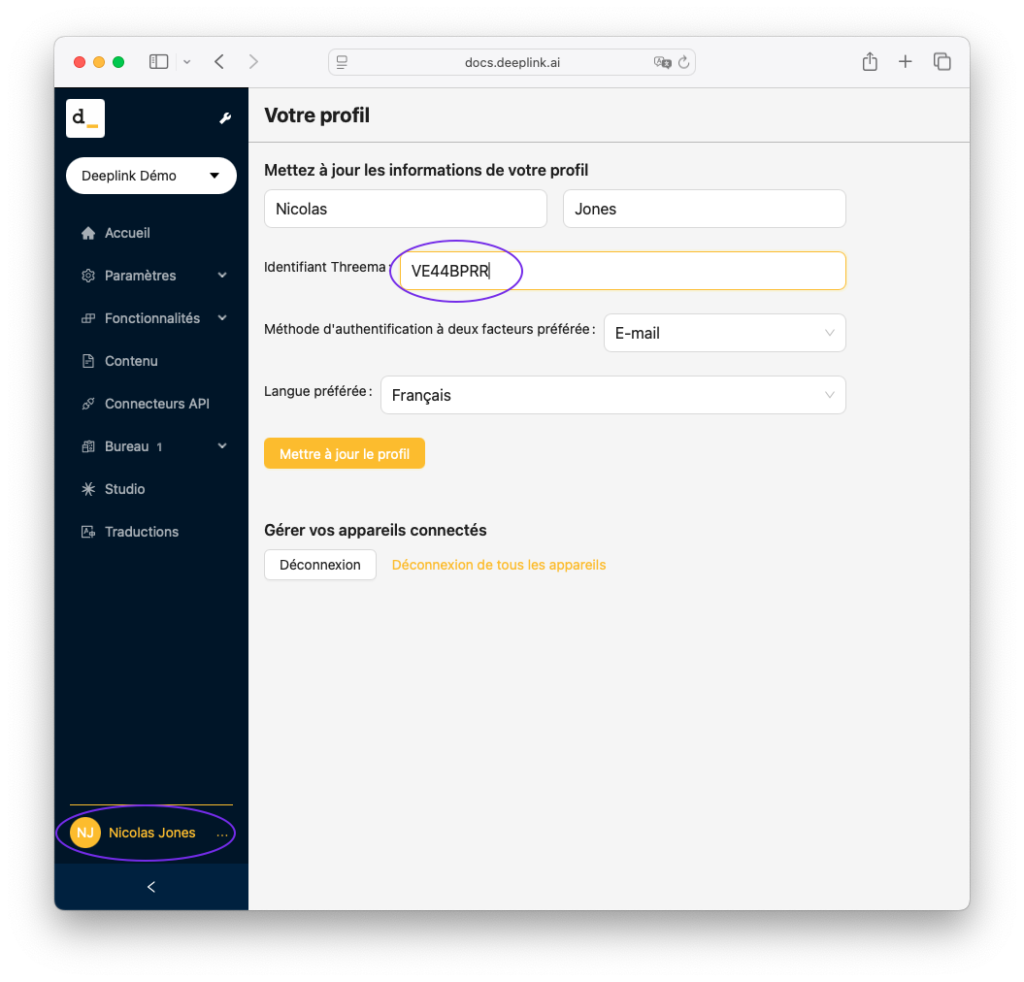
- In Threema, create a new contact and manually enter the organization’s identifier (Account ID). It will likely be in the format *ABCDEFG.
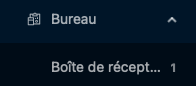
- Send a message (or several messages) to this contact from Threema. The messages will appear on the “Inbox” page, which is located in the “Dashboard” tab of our platform’s menu.
Optional: If you want an even higher level of security, you can go back to this contact in Threema and use the “scan” feature to scan the QR code we’ve provided. You should then see three green dots next to this contact.