

“Studio” is your internal GPT: It offers all the features of a chatbot and also allows you to search your internal documents—all while ensuring data privacy. You can use it to compose emails, rephrase or simplify text, explain concepts, highlight key points, correct or translate sentences, and much more.
It is based on several features.
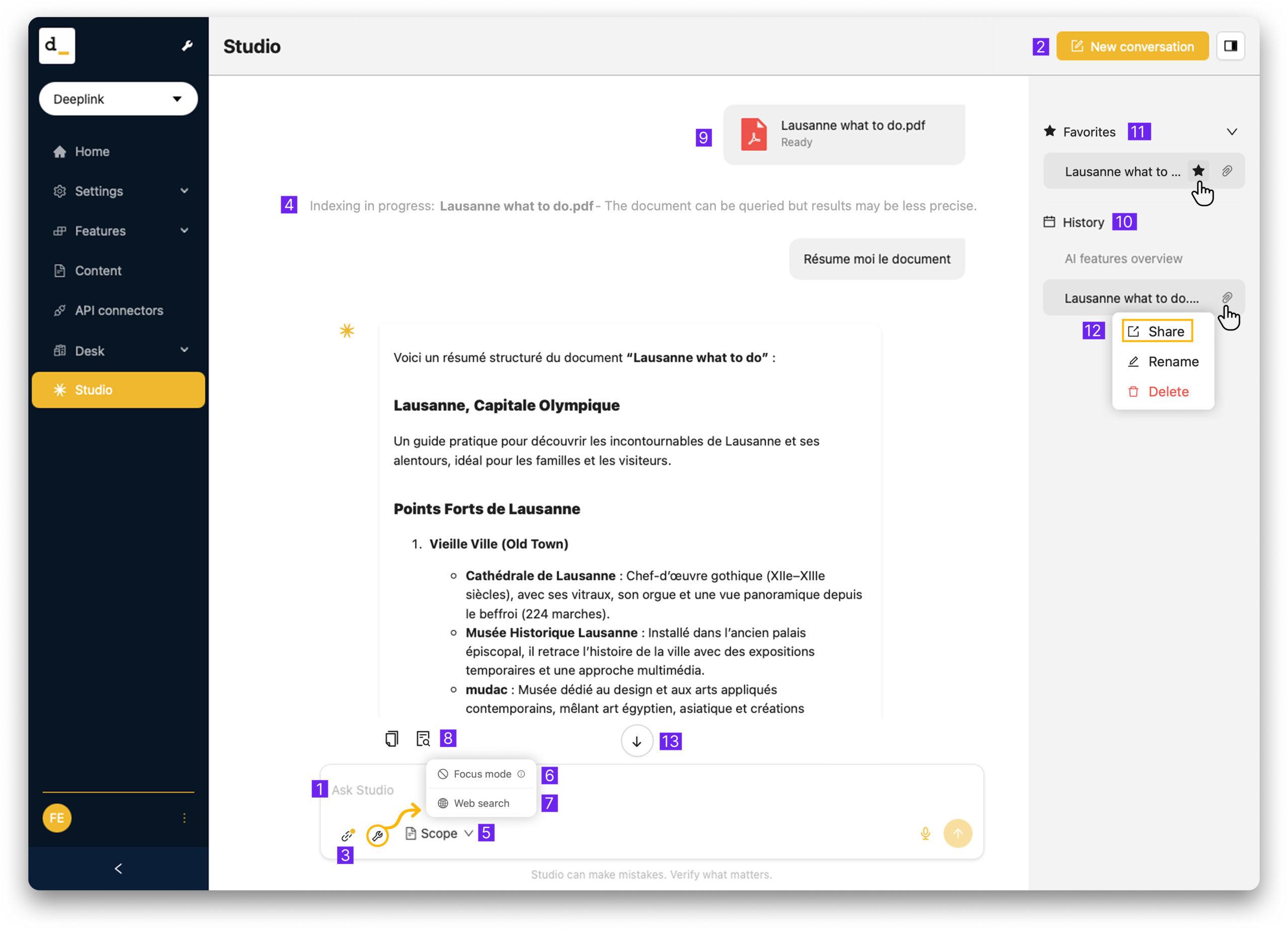
1. Text Analysis and Processing
Proofreading, summarizing, rephrasing — AI adapts your text in the blink
of an eye.
2. Conversations
Just like any good AI chatbot, your discussions are organized into “conversations.” Create as many clear, self-contained dialogues as you need, and return to them at any time to continue the conversation.
Conversations are automatically deleted after 30 days.
3. Importing Documents
In the input bar, you can upload one (or more) documents. Whether it’s a Word document, a PDF, or even an image, an imported file is translated and indexed within the platform (which can take anywhere from a few seconds to a minute, depending on the length of the content).
You can then safely search the imported content without having to anonymize anything: you are the only user with access to this data.
4. Loading Documents
You can ask questions about an uploaded document immediately, without waiting for the system to fully process it. There is a slight trade-off: as long as the document is still being processed, search results may be slightly less accurate, and certain features (such as translations and automatic summaries) are not yet available. Conversations also open more quickly, since sources are loaded only when you explicitly request to view them.
5. Scope
The Studio is part of your workspace. As such, your system administrator may have defined sets of frequently used documents. These are called “Sets” and can be selected using the “scope” selector. Essentially, you’re telling the AI the scope of data within which you’d like to have the conversation.
By selecting a set, you choose one or more knowledge bases that the AI should use to generate its response. For example, you might have writing templates that influence the AI’s writing style.
If you don’t see any sets in the scope selector, contact your workspace administrator.
6. Focus mode
Focus mode allows you to restrict the generative AI to working solely from the provided documents. Whether these documents were uploaded to the conversation or are part of a dataset, the AI will focus exclusively on them and ignore its own knowledge. (An LLM has been trained on billions of data points. Depending on the question, this data can sometimes influence the response to the detriment of the provided documents. With Focus Mode, this side effect is reduced to an absolute minimum.)
7. Web search
Web Search mode allows the AI to expand searches to external sources on the internet. Please note that when you enable this feature, anything you type in a conversation may be sent to a search engine to help refine the query. Therefore, your data is no longer protected to the same extent when using this mode. By default, it is disabled for each new conversation.
8. Sources
For each response generated by Studio, you can view the documents used by the AI. These are divided into two categories: those that were used, and others that were likely ignored by the AI (even if they were partially similar to the question). An excerpt from the document is displayed, and if you have editing rights for these documents, you can view or edit them in full with just one additional click.
9. Document Preview
You can preview source documents directly without having to open the full editing view. Clicking on an uploaded file or a source reference opens a dedicated preview panel with a consistent display for all file types.
10. History
View your previous conversations up to 30 days after the
last interaction.
11. Favorite Conversations
You can now star a conversation to find it easily. Favorite conversations appear in a dedicated section at the top of your sidebar and are never automatically deleted, unlike regular conversations, which are deleted after 30 days.
12. Shared Conversations
You can share a conversation with a colleague via a link. When someone opens your shared link, they see a copy of the conversation; they can view it, and if they want to continue the discussion, it is saved in their own account. Attached files are visible but not accessible to the recipient. If you delete the original conversation, the shared link stops working (a warning will notify you beforehand).
13. Studio on mobile
Studio is fully functional on smartphones. The text input area is no longer truncated, and a scroll-down button appears when reading long replies. Several minor fixes have also been implemented.